
User Interface
This guide will give you a short introduction to UI. Mage engine uses inferno for its components and redux for state management.
WARNING
This guide is assuming you have basic knowledge of how React-like UI frameworks work, so it's not going into details when it comes to the inner workings of the framework.
TIP
The topic is quite extensive, and it's fully covered in its dedicated page. For more information about state management, head over here. If you need a deeper introduction to UI, please refer to this page.
:::
For this guide, we're going to introduce two simple components, one called SpeedIndicator and another one called ResetButton. First, let's create the SpeedIndicator component.
SpeedIndicator.js
const SpeedIndicator = ({ speed }) => {
    return (
        <span>
            { speed }
        </span>
    );
};

export default SpeedIndicator
Pretty self explanatory, this will render a component that contains a span displaying the current speed of the car.
ResetButton.js
const ResetButton = ({ onClick }) => {
    return (
        <button onClick={onClick}>
            reset
        </button>
    );
};

export default ResetButton;
This one is quite easy as well. It will display a button on screen: its purpose is to reset the car to its initial position if you fall off the edge.
Root.js
Let's now create a root component that will take care of both child components.
import { Component } from 'inferno';
import {
    // previous imports
    GameRunner
} from 'mage-engine';

class Root extends Component {
    constructor(props) {
        super(props);

        this.state = {
            speed: 0
        };
    }

    componentDidMount() {
        setInterval(() => {
            const level = GameRunner.getCurrentLevel();
            if (level && level.car) {
                const { speed } = level.car.getPhysicsState();
                this.setState({ speed });
            }
        }, 250);
    }

    handleResetButtonClick = () => {
        GameRunner
            .getCurrentLevel()
            .resetCar();
    }

    render() {
        const { speed } = this.state;

        return (
            <>
                <SpeedIndicator speed={speed}>
                <ResetButton onClick={this.handleResetButtonClick}>
            </>
        )
    }
}
What is happening in Root.js:
- We set up a timer, every
250mswe're going to get the current running level, get the car instance and extract its speed.GameRunner.getCurrentLevel(): belongs to theGameRunnermodule, which is responsible for running your levels. This method will return the instance of the level that is currently playing.car.getPhysicsState()will return the current physic state for the object.
TIP
More information on GameRunner is available on its dedicated page here. The same applies for the Element page, where getPhysicsState is explained.
:::
- We're also setting a
onClickevent handler on our button. When pressed, it wil call theresetCarmethod on our current level. Unfortunately, we don't have that yet. So let's go back to our level and create it:
Level.js
import {
    // previous imports
    Physics
} from 'mage-engine';

// inside your level class
resetCar() {
    const position = {
        x: 0,
        y: 20,
        z: 0
    };
    Physics.resetVehicle(this.car, position, constants.ZERO_QUATERNION);
}
What is happening here?
- We are calling
Physics.resetVehicle(): since this is a phyisics based example, we need to inform the Physics module we want to reset our vehicle to a desired position and rotation. In this case, we're resetting the car to{ x: 0, y: 20, z: 0 }with no rotation (constants.ZERO_QUATERNION).
TIP
More on the Physics module in its dedicated page.
:::
Enabling UI
Enabling UI is pretty straightforward. Just head over your configuration object, and add the following:
import Root from './path/to/Root.js';

const config = {
    // previous config
    ui: {
        root: Root
    }
}
TIP
Again, configuration has its dedicated page here.
:::
This is all you need to enable the UI for this example.
WARNING
Purpose of this guide is not to explain you how to style your UI. You can use regular CSS to position everything on your screen, including the canvas element where your scene is rendered.
How does it look like?
For me, something like this: 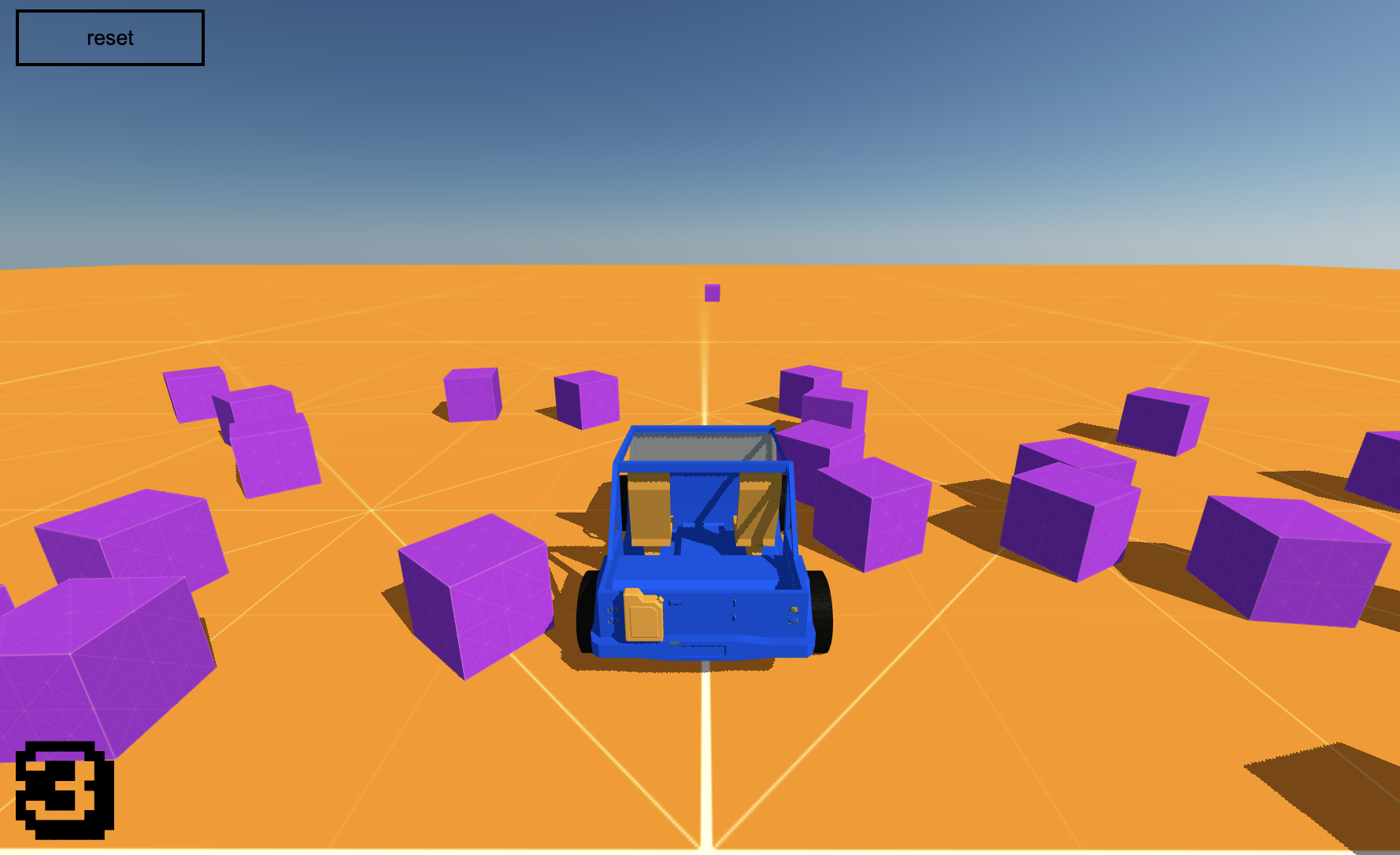
As you drive around, you should be able to see your speed displayed in the SpeedIndicator component. When pressing the reset button, your car should reset to the position we defined earlier.
Is this the end?